

These short, captioned walkthroughs introduce Flint using current controls. They have no audio. Pick a task below, then use the written steps to follow along. Review-only clips are labelled: inspecting a draft or warning is not the same as saving, assigning or releasing results.
Build and share activities
Review student work
The walkthrough reviews existing quiz and file-upload work without releasing results.
Explore Sparky’s tools
For speech features, see Speech-to-text and text-to-speech. Sparky can do considerably more besides — see Tools available when chatting with Sparky.
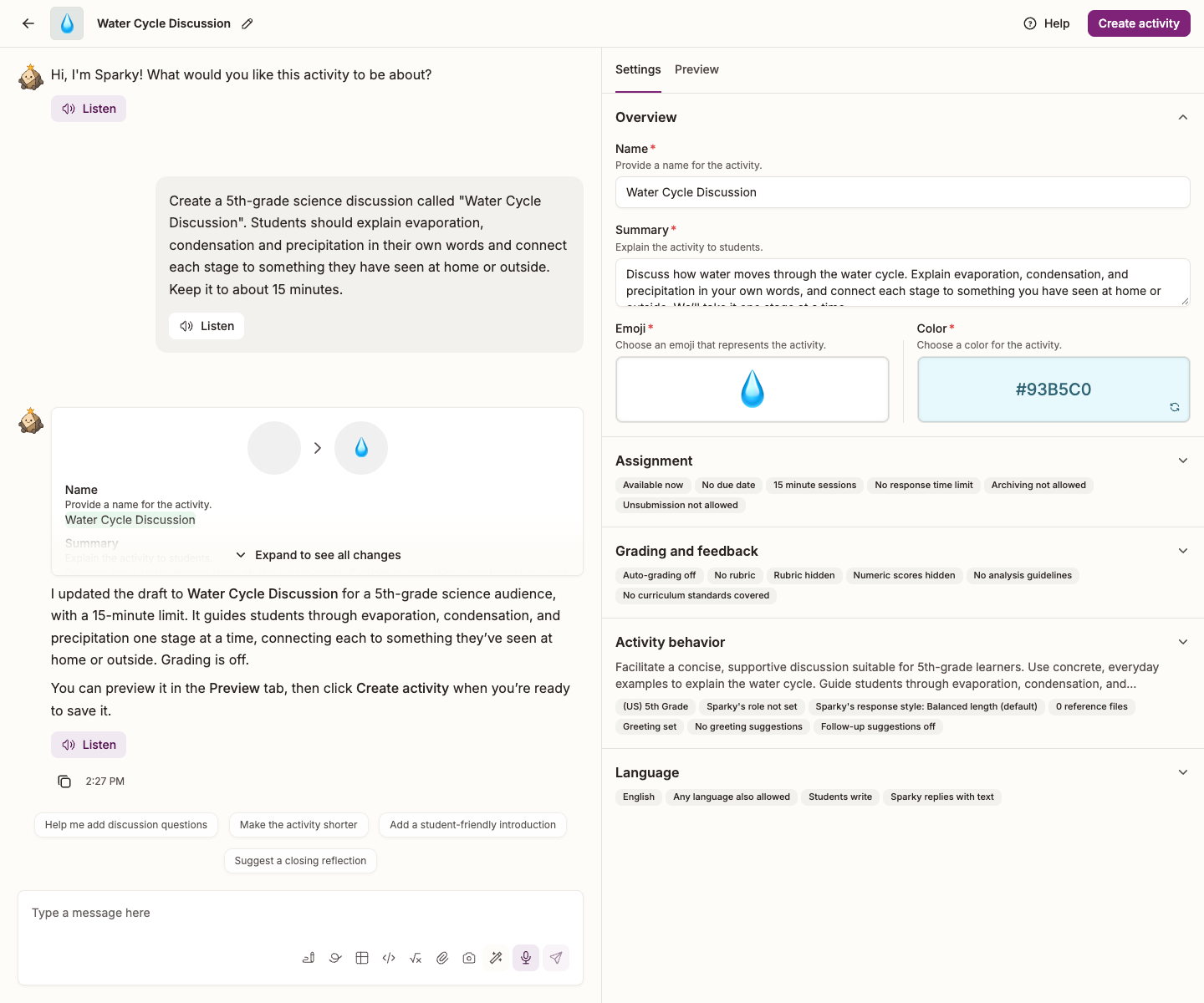
Lessons have Overview, Assignment, Grading and feedback, Activity behavior and Language sections. File uploads have the first three. Assessments have Overview and Assignment, with Questions and Preview tabs in the same panel.
The same steps, as they work today
- Click Activities in the sidebar, then Create activity.
- Choose Lesson with Sparky, Test or Quiz or File Upload, then click Start building. Resumed drafts and prepared suggestions can skip this choice.
- In the builder conversation, describe what students should do, who they are, and what they should learn. Settings is open beside the conversation; expand a section to edit fields yourself.
- For a lesson, select the Preview tab to try a student conversation. For a test or quiz, review the questions and assessment preview; for a file upload, check the instructions and rubric.
- Click Create activity for a lesson or file upload, or Create assessment for a test or quiz. For a test or quiz, check the optional start date and deadline in Review assignment settings, then click Finish creating activity. Share the activity with your class after creation finishes.
- Open the activity to review students' sessions or submissions. Assessment scores and teacher feedback are published with Share results; Share answer key is a separate release. See Activity analytics.
Running a training session
If you're introducing Flint to colleagues, these articles work well alongside the videos:
- Get Started with Flint (for Teachers) — the walkthrough to follow along with.
- Teacher onboarding checklist — what each teacher should have done by the end.
- Tips for creating your first activity in Flint — a good hands-on exercise to finish on.