

Flint has two kinds of role that describe different things:
- Your school role — Admin, Teacher or Student — applies within the selected term and can differ between terms. It shapes Sparky's assistance and suggestions, but is not the same as school-management access. Unassigned people are treated as students until assigned a role.
- Your access role is set per item: classes and activities use Can edit or Can participate; sessions use Can edit or Can view. You can have Can edit on one class and Can participate on another.
School and term ownership also control school-wide management. Changing a person's school role to Admin normally grants term ownership; changing it away from Admin normally removes that grant. Creators retain ownership regardless of their label until creatorship is transferred. A teacher-labelled school creator therefore keeps management rights. Ownership, not the label alone, is the permission check.
Admins: Assigning roles to students and teachers covers how to set school roles.
Admins, teachers and students
| School role | What Sparky does | What you can see |
|---|---|---|
| Student | Sparky is instructed to guide students through problems rather than hand over answers or complete assignments. These instructions do not guarantee every response. | Their own classes, activities and sessions. |
| Teacher | Provides full assistance: lesson plans, worksheets, feedback, activity drafts. | Their own classes and activities, plus everything created inside a class they can edit; school or term owners also have school-wide management access. |
| Admin | Provides full assistance, the same as for a teacher. | Admin access is normally paired with ownership for school-wide oversight and the Admin section. The label alone is not the permission check. |
School-wide management
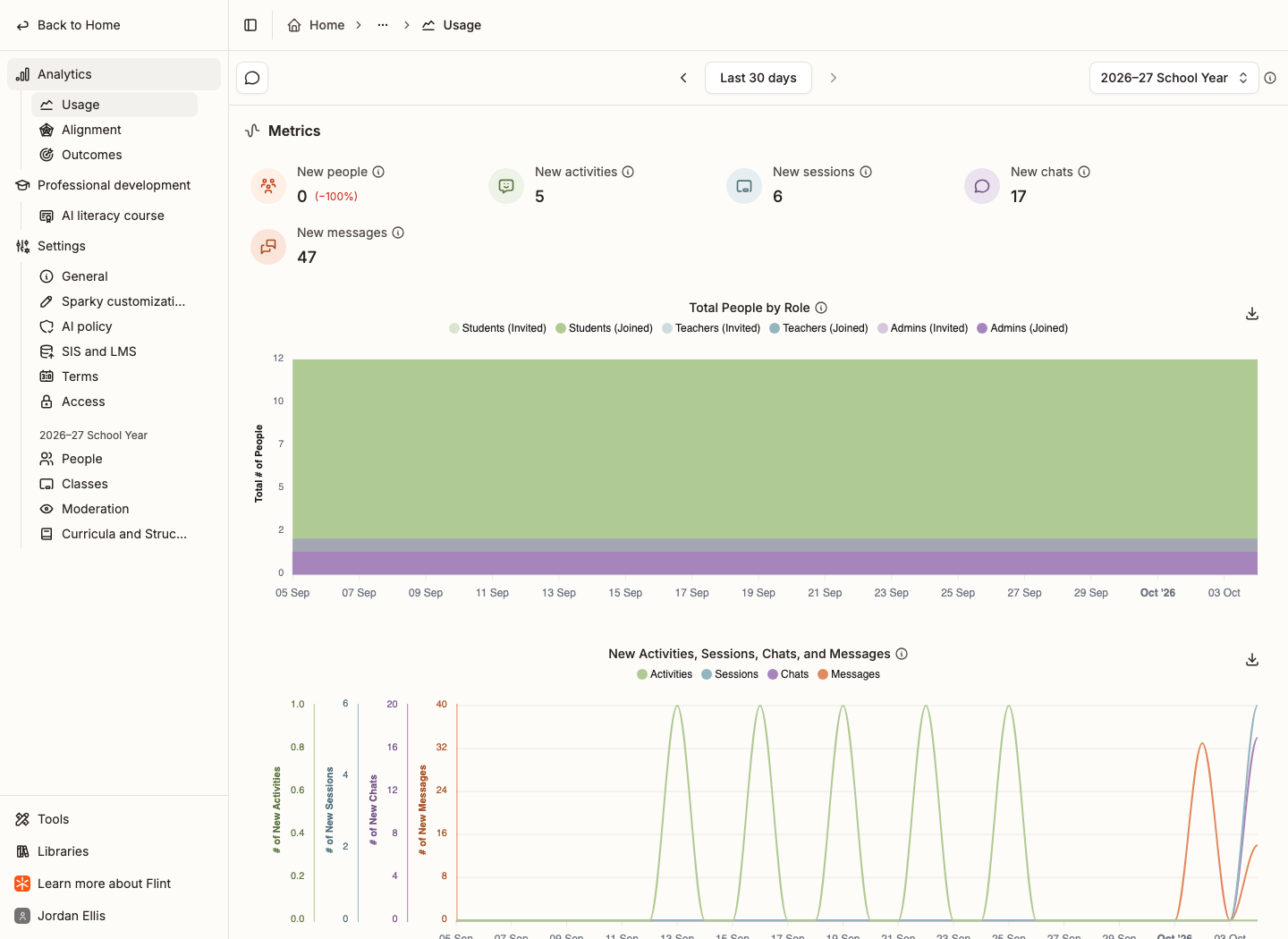
School or term owners see an Admin item in the sidebar. Non-student owners can open full school settings, and non-student term owners also see analytics and staff course tracking in that sidebar:
- Analytics — how the school is using Flint, across Usage, Alignment and Outcomes.
- Professional development › AI literacy course — staff progress, completion, reminders and CSV export where the course is available. It is available on the US deployment, not the UK deployment.
- Settings — General, Sparky customizations, AI policy, SIS and LMS, Terms and Access for the school, then People, Classes, Moderation and Curricula and Structure for the active term. Policy uploads provide retrievable context, not guaranteed adherence.
On a free school, a crown appears next to Usage, Outcomes, AI policy and SIS and LMS in this sidebar. The crown marks a school plan feature, and hovering it shows This is a school plan feature. Flint is free for teachers: what the school plan adds lists what each plan includes.
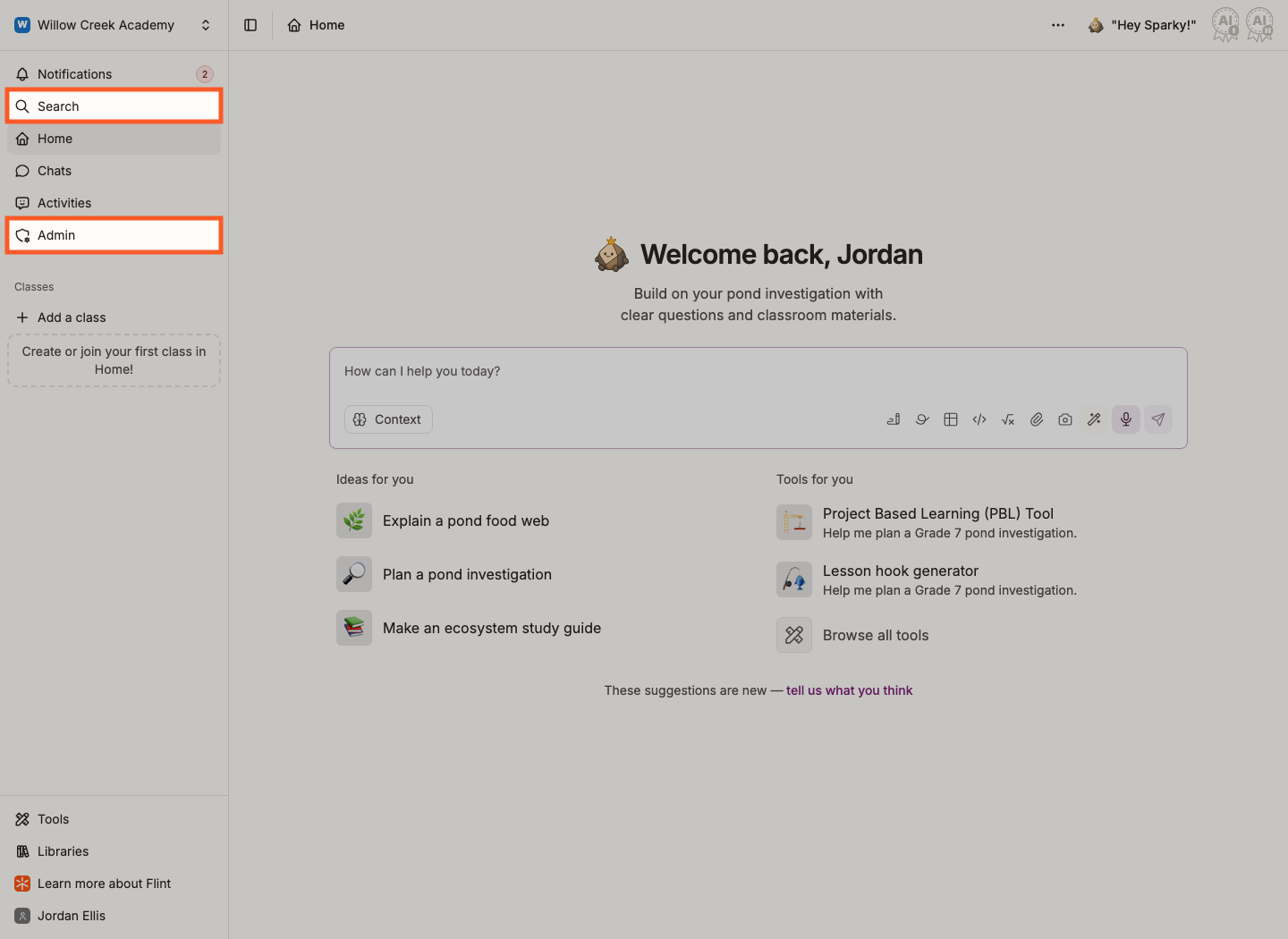
With the relevant school or term ownership, admins and teacher-labelled creators can also use Search in the sidebar for school-wide oversight. From Admin, owners manage accounts, terms, school settings and moderation, including who is notified about flagged messages, subject to the student-owner restrictions below.
A note for students
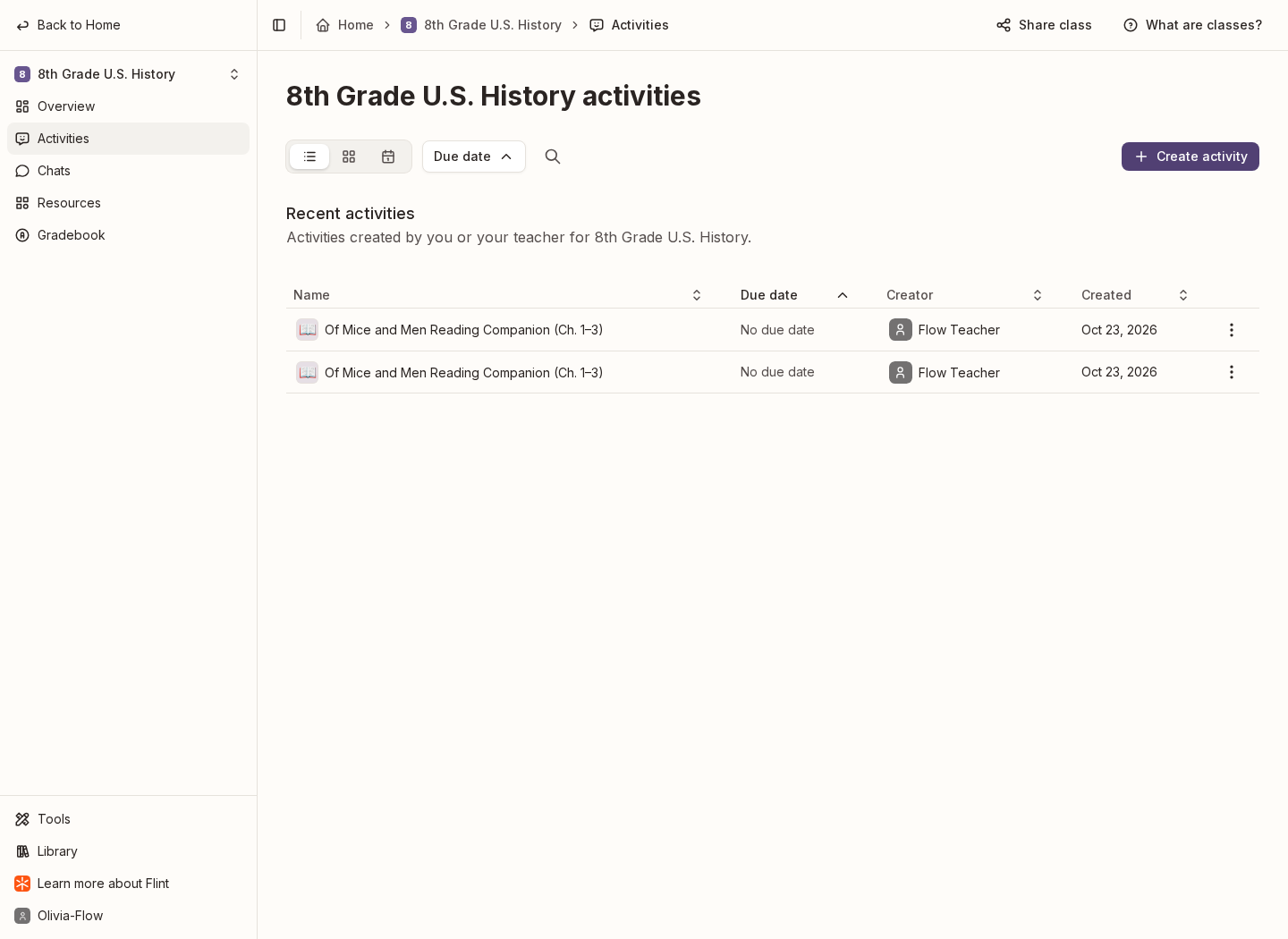
Students are usually added to classes and activities with Can participate, so they don't manage those items. They can still create their own class or activity, and they can edit anything they created. Anything a student makes is visible to school-wide owners, and to a teacher if it lives inside a class that teacher can edit.
Flint doesn't let someone create a school when any of these is true:
- They are a student in a school on the school plan or a trial, even if they teach in another school.
- They are a student in at least one school and a teacher or admin in none.
- Their email address is at a domain that a school has claimed in Flint. This applies to teachers and admins too.
When one of these applies, Flint hides Create a school in the school switcher. A student who is also a teacher or admin in another school keeps Create a school, unless the first or last rule applies.
Someone who isn't in any school yet can get a school of their own. A new user who signs up as Student and chooses I want to use Flint for learning gets their own school, unless their email domain is claimed. That student is then a student in their own school and a teacher or admin in none, so they can't create a second school. Profile onboarding: what replaced it lists the signup questions.
When a student owns a school, its Admin sidebar lists only General (name, logo and colour) and People. It does not list analytics, professional development, AI policy, moderation or other full settings. Student creators are not automatically made school moderators. Creating a personal school does not give a student administrator access to their teacher's school.
Can edit, Can participate and Can view
Access flows downwards: if you Can edit a class, you can edit the activities inside it and see the sessions inside those activities.
In a class
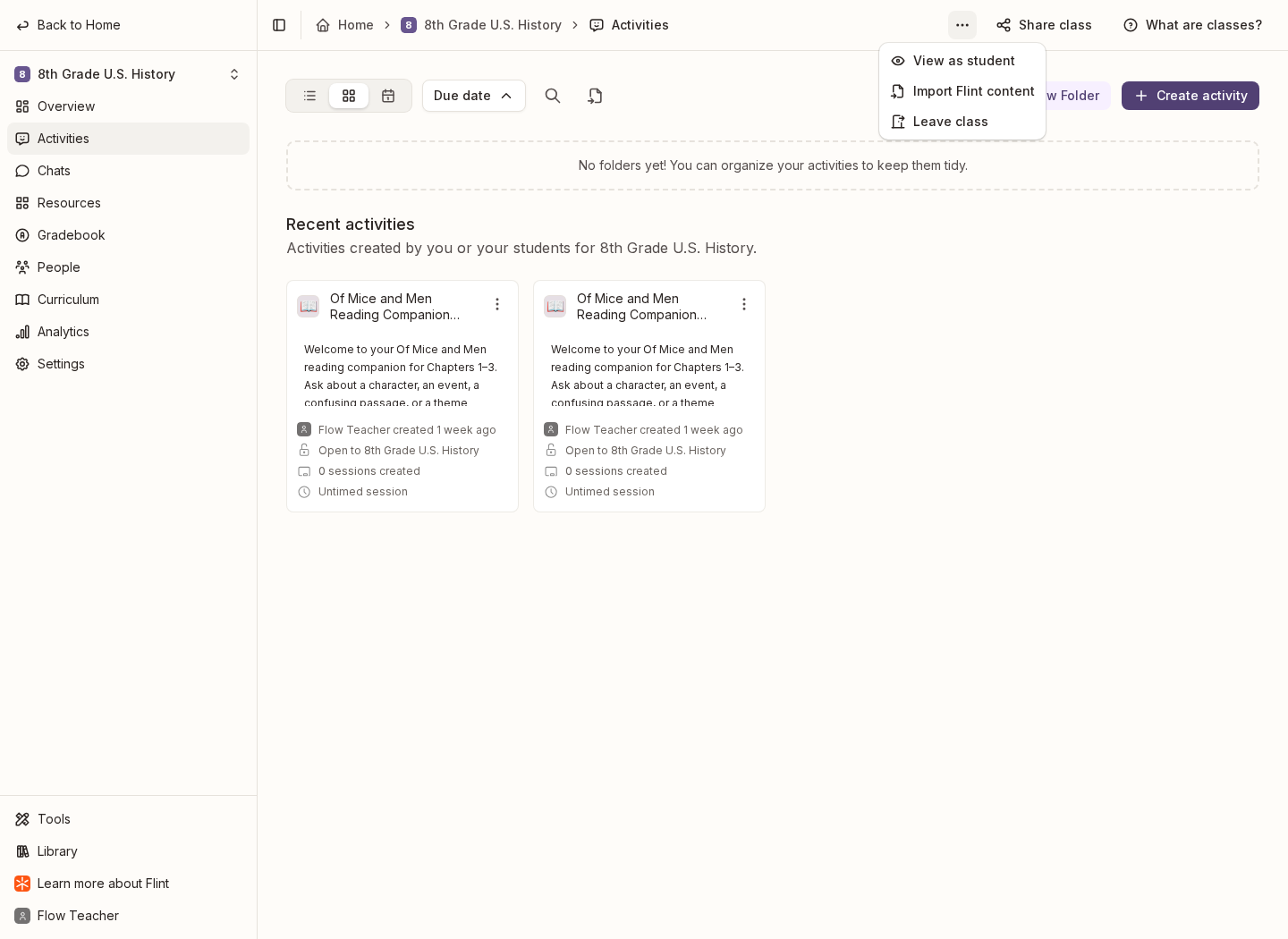
The person who creates a class gets Can edit. When classes come in from an SIS or LMS import, the teacher of record gets Can edit and the students get Can participate. A class can have several people with Can edit, which is how co-teaching works.
| Can participate | Can edit | |
|---|---|---|
| Open an activity and start a session or submission | ✅ | ✅ |
| Create an activity in the class | ✅ | ✅ |
| See the class Gradebook | ✅ | ✅ |
| See everyone's sessions or submissions | — | ✅ |
| People, Curriculum, Analytics and Settings | — | ✅ |
In an activity
The session rows below describe Chat activities, which use Start a session. File upload activities use Submit work, and Assessment activities use Start assessment. Those types create submissions instead of chat sessions: participants see their own submissions, and editors can see all submissions and manage the activity.
| Can participate | Can edit | |
|---|---|---|
| Start sessions with the activity | ✅ | ✅ |
| See your own past sessions | ✅ | ✅ |
| Share the link (if access permissions allow) | ✅ | ✅ |
| See everyone's sessions and their analysis | — | ✅ |
| Open Edit activity and change its settings | — | ✅ |
| Change Access permissions | — | ✅ |
| Duplicate activity and Publish activity | — | ✅ |
Anyone can duplicate an activity they find in a library, even without Can edit — that's the point of the libraries.
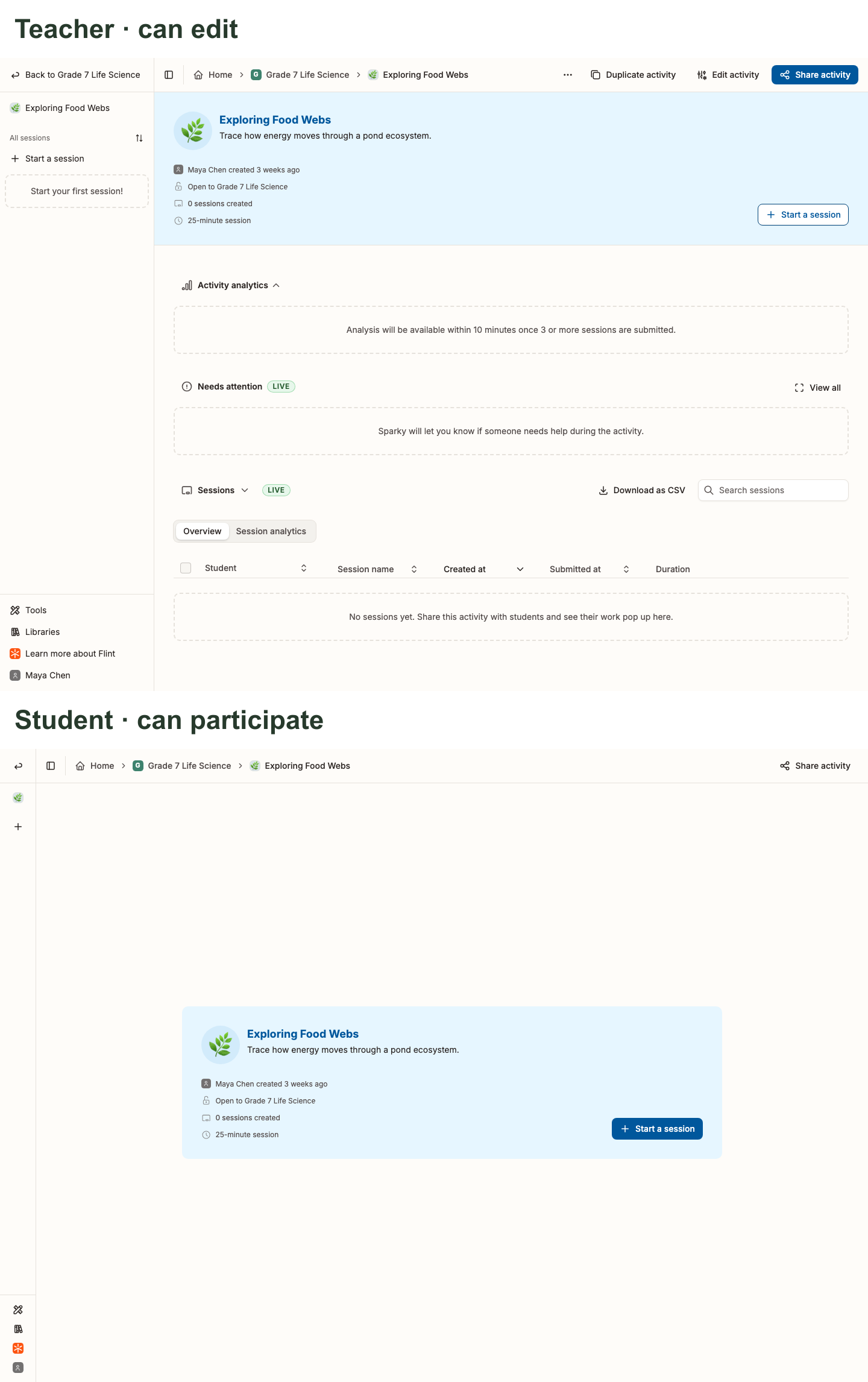
This is why a student with Can participate sees only their own sessions and cannot edit the activity's settings. A student with Can edit has the editing access described above.
In a session
Can view lets someone read a shared session. Can edit lets someone view and manage that session where its current state permits, but does not grant editing access to the parent activity or let them write in another person's conversation.
Only the person who started a session writes in it. Anyone who can edit the activity — or the class it sits in — can open the session, read the full transcript, and print, share, submit or archive it.
Deleting a session is different: it requires school ownership, not merely an Admin label or Can edit on the activity. A teacher-labelled school owner can delete sessions too. See Archiving and deleting sessions for the difference between the two.